::heading=Context
Import is the fastest way to upload recipes into your project or make bulk changes to box and pallet information. Using import, you can save yourself time and reduce errors by leveraging information that already exists.
Currently three types of imports are available:
- CSV files (excludes the pallet pattern)
- URL of existing Configurator simulations
- XML or TXT files exported from Packaging software, Cape Pack (Esko) and TOPS
To successfully import CSV files into your project, make sure that they meet certain formatting requirements described in this article.
Note: This feature is currently behind a feature flag "?ff_import_csv&ff_export_csv" and not available by default.
::heading=Video demo (5:24)
 Link: https://drive.google.com/file/d/1eAj9r3Lqzl1ljhJHC-ZbCUWqQFvlgaV-/view?usp=drive_link
::heading=List of supported CSV columns
Headers need to match exactly those of the template, which can be found via an export in multi-recipe.
- Retrieve only the headers:
- On Recipe (step 1), click EXPORT.
- For ‘Export File Type’, select ‘Template’ and click EXPORT
OR
- Retrieve headers and example values:
- On Recipe (step 1), click ADD to include a new default recipe line, ex. My Item
- Select the new recipe line and click EXPORT.
- For ‘Export File Type’, ensure CSV is selected and click EXPORT.
- Open or import the exported CSV file in any spreadsheet editor like Google Sheets, Excel, or Numbers.
::heading=Columns that are mandatory
To create new recipes, “Unit System”, “Box Side”, “Box Front”, “Box Height” and “Box Weight” are required.
To update existing recipes, “Unique identifier” is required.
::heading=Import confirmation or alerts
Confirmation feedback will be shared during the import:
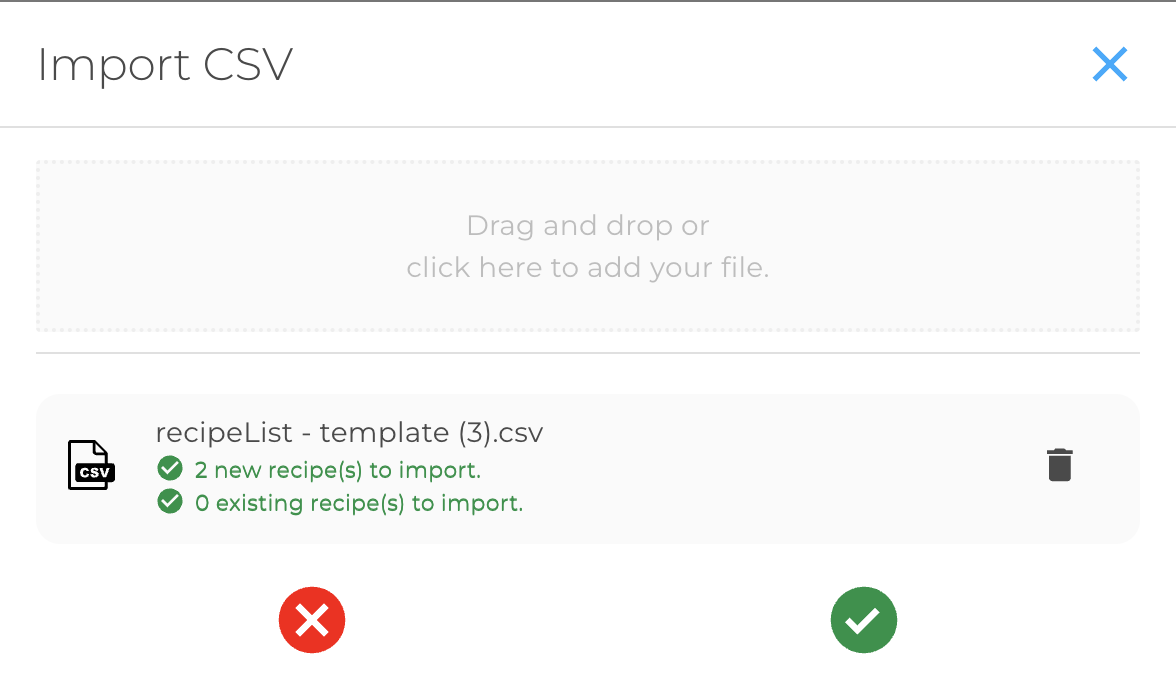
In the event of errors, additional feedback will be shared depending on the particular column, example:

::heading=A description of available columns and requirements
The following table provides an detailed overview for each of the available columns.
| Column name |
Description and what to write |
What if I make an error or leave the cell blank? |
| Unique identifier |
-
A number with hyphens. For example, "93fe04f5-c5b8-4f8e-810c-5ad6ab47df74".
- Used while updating products that already exist in your multi-recipe project.
- Unique identifier is generated when the recipe is created in your multi-recipe project. If you’re uploading a new recipe, you don’t know the unique identifier yet, so you don’t need to specify it.
|
- If the entered value does not match a valid unique identifier, a new recipe line will be created.
|
| Recipe Name |
- Product SKU, the code that identifies the product within your business.
- Any text you need (words, numbers, etc.).
- Example, "ZNG100-2DX".
|
- A warning will be displayed if duplicate names exists, but it will permit the import.
- If the field is left blank, "My Item" with an incremental number will be used.
|
| Unit System (Metric or Imperial) |
- Clarify the unit type that match the box dimensions, weight and pallet dimensions.
- One of two options, either "Metric" or "Imperial" (not case sensitive).
|
- An error will be displayed if Metric or Imperial is not detected and the recipe line will not be imported.
|
| Box Side, Length |
- Length of the box or case.
-
A number with or without fractional parts between 50 and 5000 (or 1.97 and 196.85). Fractional parts can be separated by a dot.
- Example, "42" or "41.50".
|
- An error will be displayed if the value is not within the permitted range.
|
| Box Front, Width |
- Width of the box or case
-
A number with or without fractional parts between 50 and 5000 (or 1.97 and 196.85). Fractional parts can be separated by a dot.
-
Example, "24" or "23.95".
|
- An error will be displayed if the value is not within the permitted range.
|
| Box Height |
- Height of the box or case
-
A number with or without fractional parts between 1 and 5000 (or 0.04 and 196.85). Fractional parts can be separated by a dot.
- Example, "20" or "19.95".
|
- An error will be displayed if the value is not within the permitted range.
|
| Box Weight |
- Weight of the box or case
- A number with or without fractional parts. Fractional parts can be separated by a dot.
- Example, "18" or "17.95".
|
- An error will be displayed if the value is not within the permitted range.
|
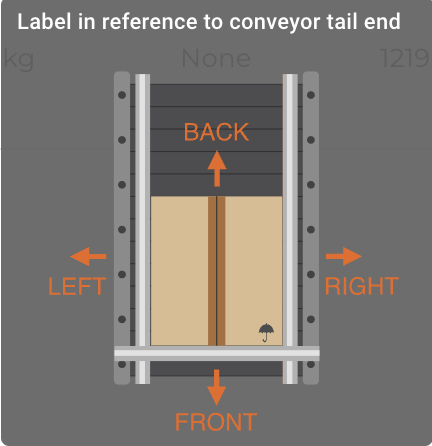
| Box Label Position (None, Left, Front, Right, Back) |
- Box label position in reference to the conveyor tail end.
- One of the options listed between parenthesis in the column name.
- Example, "Front".
|
- You can leave the cell blank when creating a new recipe and the value will default to "None".
|
| Pallet Side, Length |
- Length of the pallet.
-
A number with or without fractional parts between 300 and 5000 (or 11.81 and 196.85). Fractional parts can be separated by a dot.
- Example, "1225".
|
- You can leave the cell blank when creating a new recipe and the value will be populated by a system default.
|
| Pallet Front, Width |
- Length of the pallet.
-
A number with or without fractional parts between 300 and 5000 (or 11.81 and 196.85). Fractional parts can be separated by a dot.
- Example, "1000".
|
- You can leave the cell blank when creating a new recipe and the value will be populated by a system default.
|
| Pallet Height |
- Length of the pallet.
-
A number with or without fractional parts between 1 and 5000 (or 0.04 and 196.85). Fractional parts can be separated by a dot.
- Example, "125".
|
- You can leave the cell blank when creating a new recipe and the value will be populated by a system default.
|
| Default Pick Pose Orientation (Auto, 0, 90, 180, 270)* |
|
- You can leave the cell blank when creating a new recipe and the value will default to "Auto".
|
| Allow Gripper To Pick The Box At Different Angles (90, 180, 90 & 180)* |
|
- You can leave the cell blank when creating a new recipe and the value will be populated by a system default.
|
| Interlayer Count* |
|
- You can leave the cell blank when creating a new recipe.
|
| Pallet swap delay (Seconds)* |
|
- You can leave the cell blank when creating a new recipe.
|
| Interlayer delay (Seconds)* |
|
- You can leave the cell blank when creating a new recipe.
|
| Additional Simulation JSON* |
|
- You can leave the cell blank when creating a new recipe.
|
*Advanced system settings

0 Comments